The editor
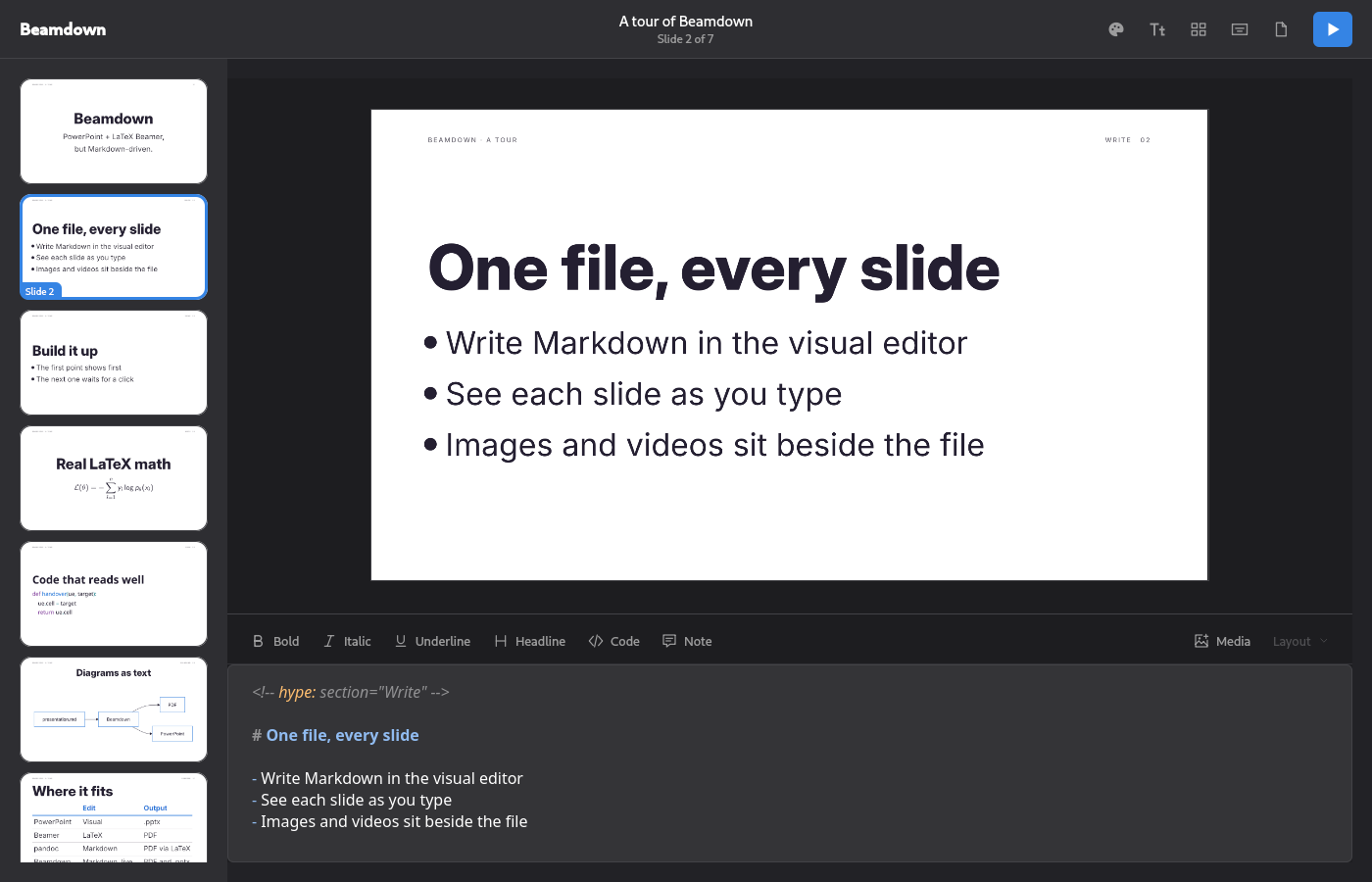
Open Beamdown from your app launcher. It reopens your last presentation; use Ctrl+N to start a new one, or Ctrl+O to choose a Markdown file.
In Visual mode, select a slide in the sidebar and write its Markdown below the preview. Changes appear as you type. Drag the divider, or the empty part of the formatting bar under it, to give the preview or editor more room, or press Ctrl+Alt+Up / Ctrl+Alt+Down; Ctrl+Alt+E makes the editor tall for long speaker notes and back. Beamdown remembers the height. Two buttons in the top bar switch modes. The grid button, or Ctrl+M, turns the Overview on and off, returning to the mode you came from. The button beside it shows a slide in Visual mode and # in Markdown mode; click it, or press Ctrl+., to switch between them. Markdown mode edits the whole presentation, with the same formatting bar on top.
Overview mode fills the window with a grid of every slide. Select, rearrange, duplicate, and delete slides there as you would in the sidebar; the up and down arrows move by a row. Double-click a slide or press Enter to open it in Visual mode.
The buttons above the editor apply bold, italic, underline, headlines, code blocks, and hidden comments to your selection. Beamdown reads *asterisks* as italic and _underscores_ as underline. Media adds an image or video; Layout opens its layout and background options.
Press Ctrl+F to find text in the slide you are editing, or Ctrl+Shift+F to find it in every slide; All slides in the find bar switches between the two. Matching ignores case. Enter or Down goes to the next match and Shift+Enter or Up to the previous one, changing slides as it goes. Escape closes the bar and leaves the match selected in the editor. In Markdown mode both shortcuts search the whole presentation.
Use Ctrl+Enter or right-click a slide to add a slide after the selection. Drag slides to rearrange them—their Markdown moves with them. Hold a dragged slide near the top or bottom of the sidebar or overview to scroll further. Select several slides with Shift+click or Shift+arrows to move, duplicate, or delete them together.
Beamdown saves automatically after a one-second typing pause, or every five seconds while you keep typing. Use Ctrl+S to choose a file for a new presentation or save immediately. Beamdown remembers the last directory you opened or saved to.
Every saved version stays in .hype-backups/ beside your presentation (the folder keeps Hype's name, so both apps share it). Beamdown also keeps local recovery snapshots, including unfinished Markdown and unnamed presentations, and restores your latest draft when you reopen after a crash. Choose Version history from the file menu in the top bar to restore an earlier snapshot; your current version remains available there too. Recovery snapshots contain Markdown and slide boundaries, not copies of images or videos. Unfinished code fences are backed up without replacing the last valid presentation file. Finish them before exporting; Beamdown checks that every slide will be preserved.
Local recovery snapshots live in ~/.local/state/beamdown/recovery/ (under $XDG_STATE_HOME if set). You can also recover a .hype-backups/ version manually: copy its .bak file to a new .md file and open it.